
spaceconfessional (![[personal profile]](https://www.dreamwidth.org/img/silk/identity/user.png) spaceconfessional) wrote2025-01-24 08:56 pm
spaceconfessional) wrote2025-01-24 08:56 pm
spaceconfessional) wrote2025-01-24 08:56 pm


Entry tags:
FIREFOX EXTENTION TUTORIAL: Tabs Groups and Account Containers
With chromium browsers (chrome/opera/brave/vivaldi/etc) going to shit and folks making the leap to Firefox, a few things get lost in the transition. One of the big issues I've been seeing is lj juggler (used for swapping logins for different dw accounts) constantly logging folks out every few minutes, sometimes mid-tag. It's been a while since I installed it myself, but unfortunately lj juggler isn't an easily installed extension, requiring you to install an apk file through firefox's settings. Which can be a bit of a pain, especially if any firefox updates interfere with the apk.
So!
I am writing this because at some point, I've probably been in your plurk singing the praises of two different firefox extensions that work in tandem together. Ruru introduced me to them a few years ago and I have sworn by them ever since. (Note: this is for windows. I cannot for the life of me figure out how to install extensions on the apple version of firefox, but it ultimately should work the same way)
To start:
Account Containers is an extension that allows you to set up logins to the same websites in different containers. I can have a tab open for Mr Jonathan Sims and a tab for Marcille in the same browser window without having to log in/log out, use a juggler, or incognito windows. You can color code and label them however you like!
The specific account containers extension you're looking for is this one: Firefox Multi-Account Containers

Easy installation and is an official extension, so no worries about installing APK files.
When you go to set it up, it'll look like this (minus the accounts, those are mine. They'll fill up with yours when you start):

You'll want to go to "manage containers", and create a new one. Then name it, color code it, what have you.


From there, I usually will right click on the "new tab" option in firefox, and then select what account container it will be. And then log into dreamwidth with that character's account.

And boom! Now any dreamwidth tab you open in that container will automatically log in to that character's account.
Now, Simple Tab Groups brings the back half of this. If you're someone who keeps a lot of threads open and doesn't want to lose them, tab groups are a life saver. I use them for everything, not just dreamwidth. Basically, you can create groups of tabs and keep them in their own boxes.
There are different ways you can set them up to load: either whatever group you select will replace your existing tabs, or you can right-click and have them all open in a new window which is what I usually do. No matter which one you use, the tabs will be saved if you close the window itself. Closing individual tabs will remove them from the group.
The specific version you're looking for is: Simple Tabs Groups. This one:

When you start it up, it'll look a little... empty. So you'll want to click "Manage Groups" and it'll bring you into a new tab that shows you a tab group including whatever window you currently have open. You'll want to click that gear!

From there, you'll get a slightly more complicated looking menu. This lets you name the group, color code it, pick the icon associated (or upload your own image for it), and most importantly choose what account is associated with that group.
For every character account you have logged in to your account container, you'll want to set that group to always open tabs in that container. There are plenty of other settings to mess with, but that is the most important one from the setup to get done.

Once you have them all set up, they'll generally look like this when you click on the tab groups extension icon:

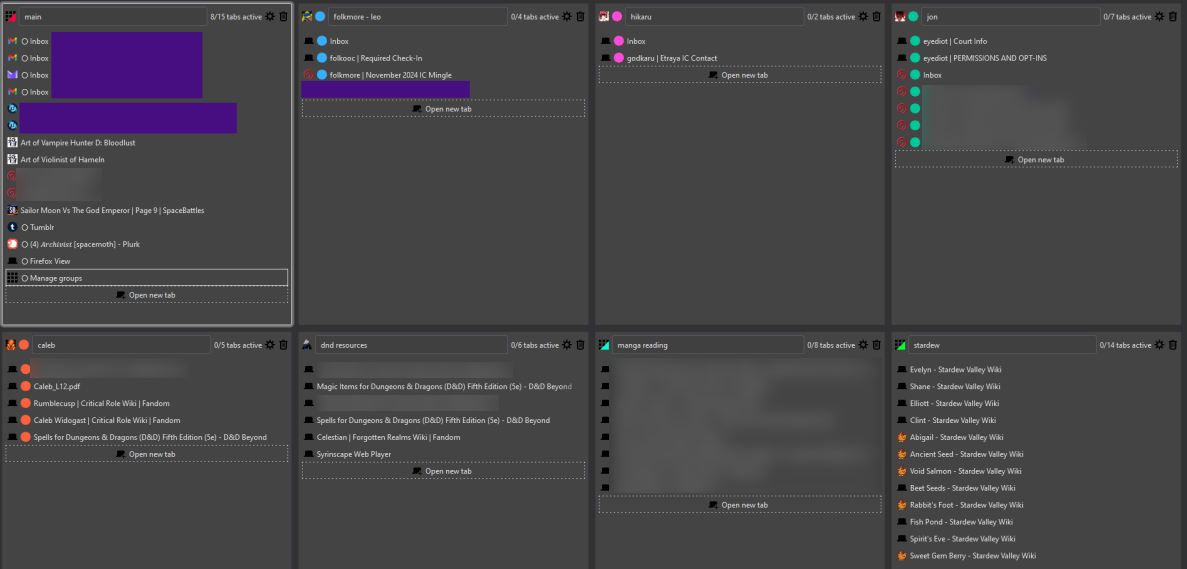
It also tells you how many tabs are in that group, and how many are actively open at that moment.
Once you have a few groups, it'll end up looking similar to this. You can edit/delete/create new tabs from here if you need to, reorder the groups in the drop down by dragging each group around. I found it pretty easy to figure out once I got the account container associated with each group.
ADDENDUM 2025-07-19: Adding this in after a conversation with Liv yesterday, something I forgot to bring up!
If you want to open a link in a specific container without having all your tabs open (say, you're in one container and want to open a link in another container), you can just right click the link and select "open link in group", select what tab group you want it in, and it will send that link there!
Example: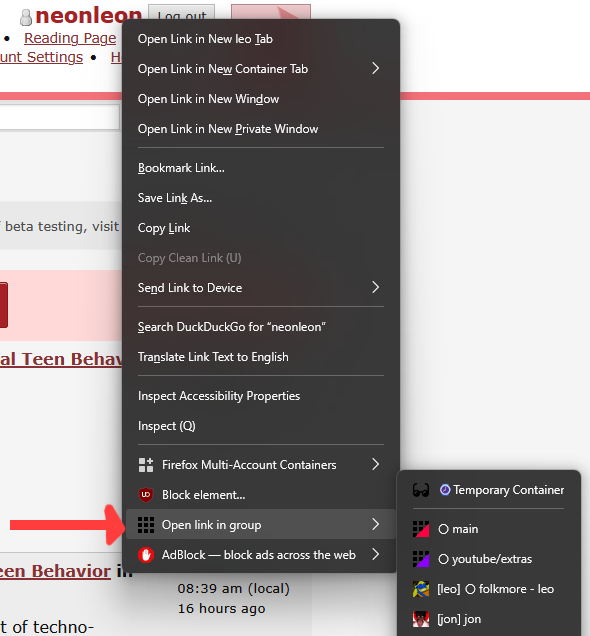
Anyway that's how they work in firefox! A little bit of work up front, but well worth it in the long run. I was hesitant to swap over to using them because they seemed more complicated, but I've since sworn by them and gave up lj juggler and have yet to have any real issue. Only occasionally do I need to log back into an account via this method, usually only when I haven't opened that group in a while or cleared my browser cache.
I hope this helps folks!
So!
I am writing this because at some point, I've probably been in your plurk singing the praises of two different firefox extensions that work in tandem together. Ruru introduced me to them a few years ago and I have sworn by them ever since. (Note: this is for windows. I cannot for the life of me figure out how to install extensions on the apple version of firefox, but it ultimately should work the same way)
To start:
Account Containers is an extension that allows you to set up logins to the same websites in different containers. I can have a tab open for Mr Jonathan Sims and a tab for Marcille in the same browser window without having to log in/log out, use a juggler, or incognito windows. You can color code and label them however you like!
The specific account containers extension you're looking for is this one: Firefox Multi-Account Containers
Easy installation and is an official extension, so no worries about installing APK files.
When you go to set it up, it'll look like this (minus the accounts, those are mine. They'll fill up with yours when you start):
You'll want to go to "manage containers", and create a new one. Then name it, color code it, what have you.
From there, I usually will right click on the "new tab" option in firefox, and then select what account container it will be. And then log into dreamwidth with that character's account.
And boom! Now any dreamwidth tab you open in that container will automatically log in to that character's account.
Now, Simple Tab Groups brings the back half of this. If you're someone who keeps a lot of threads open and doesn't want to lose them, tab groups are a life saver. I use them for everything, not just dreamwidth. Basically, you can create groups of tabs and keep them in their own boxes.
There are different ways you can set them up to load: either whatever group you select will replace your existing tabs, or you can right-click and have them all open in a new window which is what I usually do. No matter which one you use, the tabs will be saved if you close the window itself. Closing individual tabs will remove them from the group.
The specific version you're looking for is: Simple Tabs Groups. This one:
When you start it up, it'll look a little... empty. So you'll want to click "Manage Groups" and it'll bring you into a new tab that shows you a tab group including whatever window you currently have open. You'll want to click that gear!
From there, you'll get a slightly more complicated looking menu. This lets you name the group, color code it, pick the icon associated (or upload your own image for it), and most importantly choose what account is associated with that group.
For every character account you have logged in to your account container, you'll want to set that group to always open tabs in that container. There are plenty of other settings to mess with, but that is the most important one from the setup to get done.
Once you have them all set up, they'll generally look like this when you click on the tab groups extension icon:
It also tells you how many tabs are in that group, and how many are actively open at that moment.
Once you have a few groups, it'll end up looking similar to this. You can edit/delete/create new tabs from here if you need to, reorder the groups in the drop down by dragging each group around. I found it pretty easy to figure out once I got the account container associated with each group.
ADDENDUM 2025-07-19: Adding this in after a conversation with Liv yesterday, something I forgot to bring up!
If you want to open a link in a specific container without having all your tabs open (say, you're in one container and want to open a link in another container), you can just right click the link and select "open link in group", select what tab group you want it in, and it will send that link there!
Example:
Anyway that's how they work in firefox! A little bit of work up front, but well worth it in the long run. I was hesitant to swap over to using them because they seemed more complicated, but I've since sworn by them and gave up lj juggler and have yet to have any real issue. Only occasionally do I need to log back into an account via this method, usually only when I haven't opened that group in a while or cleared my browser cache.
I hope this helps folks!